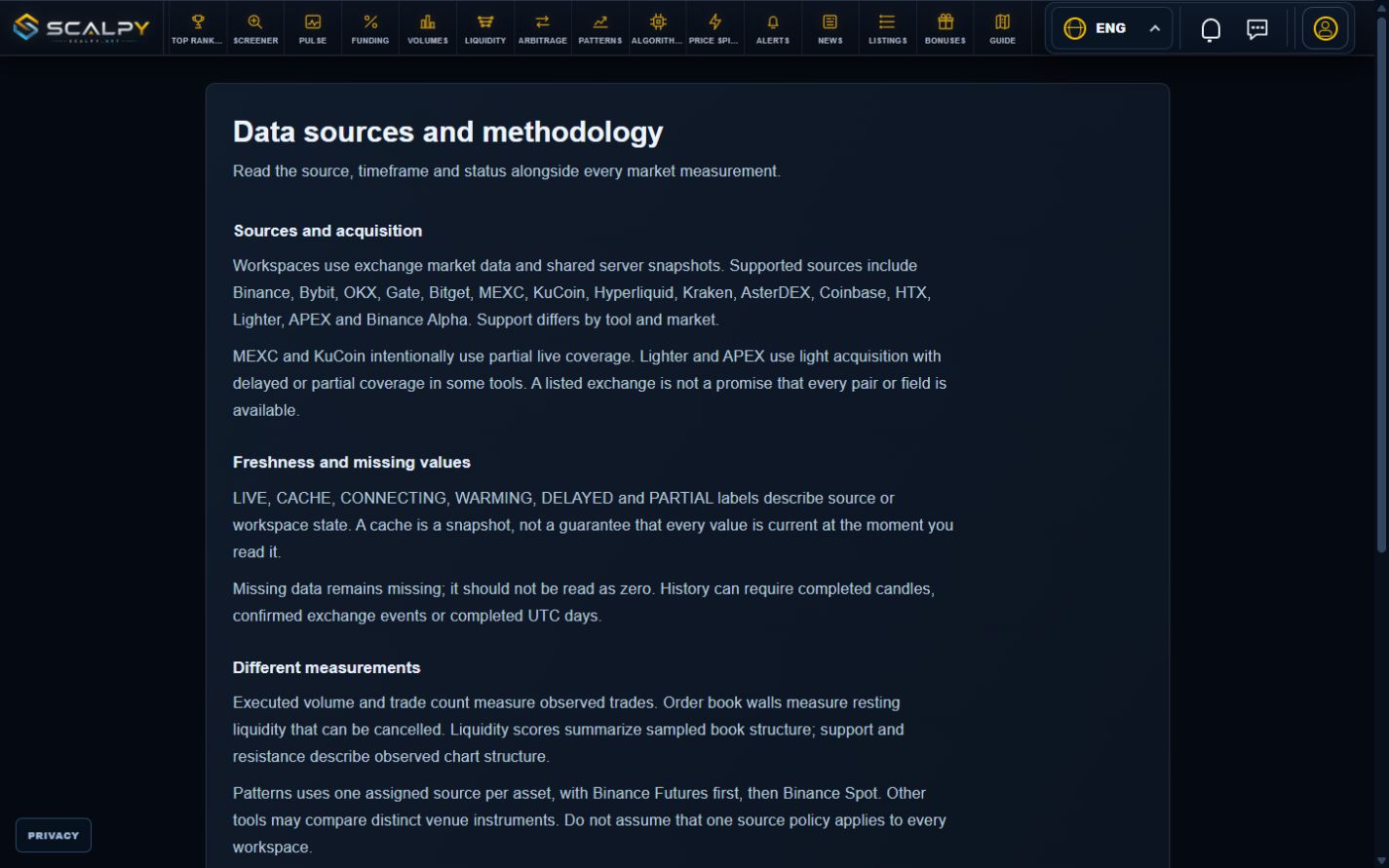
Choose a tool for your question and check its data source. This guide covers Scalpy pages, controls and measurements.
Enlarge screenshot ⤢Real site · 6 October 2026 · values and settings shown as examples.
01Choose a workspace
Top Ranked shows 24-hour gainers and losers. Screener compares movements on candle charts. Market Pulse shows executed activity. Volumes tracks large resting book orders; Liquidity compares a depth score.
Funding shows perpetual rates. Arbitrage compares quotes across markets. Patterns finds support, resistance and optional trend lines. Algorithms detects recurring executions. Price Spike follows fast moves and retracements.
02Your first steps
Open a workspace, enable the Spot/Futures sources you need and set filter thresholds. Start with a small market set and moderate thresholds, then inspect a card or row.
Compare venue, market type, time window and update age. The same asset can have different prices and activity on Spot and Futures.
03Using this guide
Use the left list to open a detailed article on the right. Search matches titles and body text, such as “retracement”, “blacklist” or “Colibri”. The address bar links directly to the selected section.
Click a screenshot to enlarge it. Images were captured from the real site on 6 October 2026; prices, rows, filters and statuses are examples.
04Reading a result
Measurements describe observed data rather than a guaranteed trading outcome. Scalpy helps you investigate markets; these workspaces do not submit exchange orders.
If no results appear, check enabled sources, thresholds and freshness first. The “Data and status” section explains warm-up and partial coverage.
Exchanges, filters, hidden assets and charts: several workspaces share these ideas.
Enlarge screenshot ⤢Real site · 6 October 2026 · values and settings shown as examples.
01Sources and individual filters
Spot and Futures switches select sources for the current workspace. An unavailable or “soon” market cannot be enabled. Connection status describes a feed, not complete coverage of every asset.
Where provided, ⚙ beside a market opens individual settings. These thresholds can differ from global rules; check whether an individual override is active.
02Two ways to hide assets
The crossed-eye button adds a particular asset to that tool’s blacklist. Open Blacklist to restore it.
“Hide coins already listed on…” excludes assets listed on selected markets. For example, excluding Binance Spot removes those assets from other sources too. Disabling Binance itself only removes its source data and does not apply this listing exclusion.
03Layout, charts and refresh
Chart grids provide count and card-size controls. On Screener and Price Spike, use the mouse wheel to zoom, drag to pan and Reset view to restore framing. On Screener, right-click enlarges a chart.
Refresh requests current data; it does not create missing history or enable a disabled source. The panel-edge arrow collapses filters; the menu button reveals hidden top navigation.
04Language, saving and reset
RU/EN in the header changes the language of the current page. Exchange names, tickers and standard labels such as Spot, Futures, Bid and Ask remain recognizable.
Anonymous preferences are stored in the browser. After sign-in, supported settings sync with the account. Reset applies to the block or workspace named on the button. NEW highlights a recent appearance; turning it off removes the highlight, not the result.
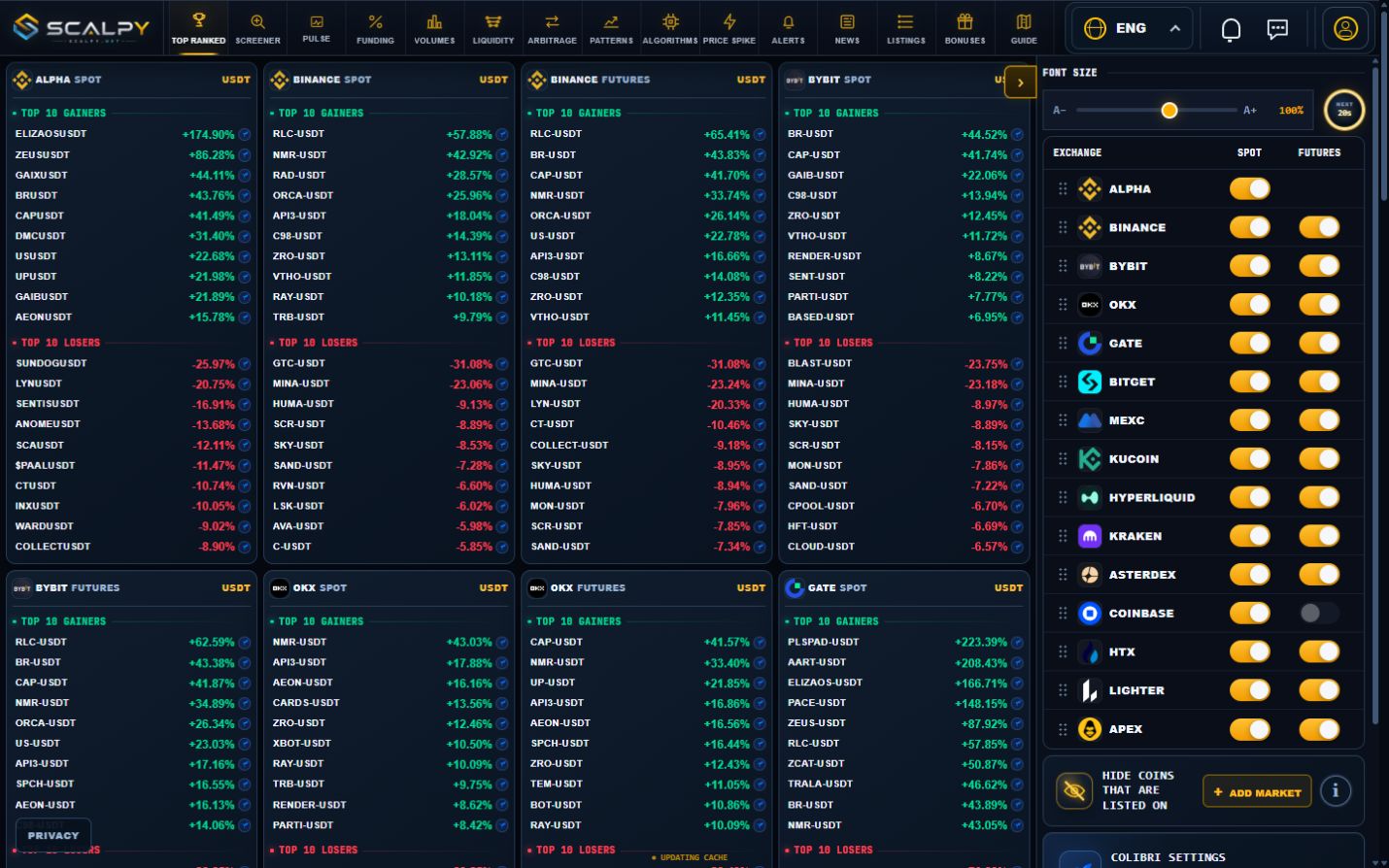
24-hour gainers and losers grouped by venue and market.
Enlarge screenshot ⤢Real site · 6 October 2026 · values and settings shown as examples.
01Reading the cards
Each enabled market shows its top 10 gainers and top 10 losers. Read ticker, venue, Spot/Futures and price change together. The percentage is a 24-hour change, not a change since you opened the page.
02Choosing and arranging markets
Enable venue Spot/Futures lanes in the side panel. Exchange ordering controls rearrange their blocks. The font slider changes list density; the timer shows the next refresh cycle.
03Exclusions and NEW
Use Add market to exclude assets listed on selected markets. This helps find assets absent from a particular venue; the adjacent help explains the exclusion.
NEW duration controls highlighting when a coin enters the list. It does not confirm a new exchange listing; use Listings for launch announcements.
04Opening in Colibri
The coin’s Colibri button sends the selected instrument to the local terminal. Change in Colibri settings chooses destination and chart behavior. If it does not open, check Local API using the Colibri article in this guide.
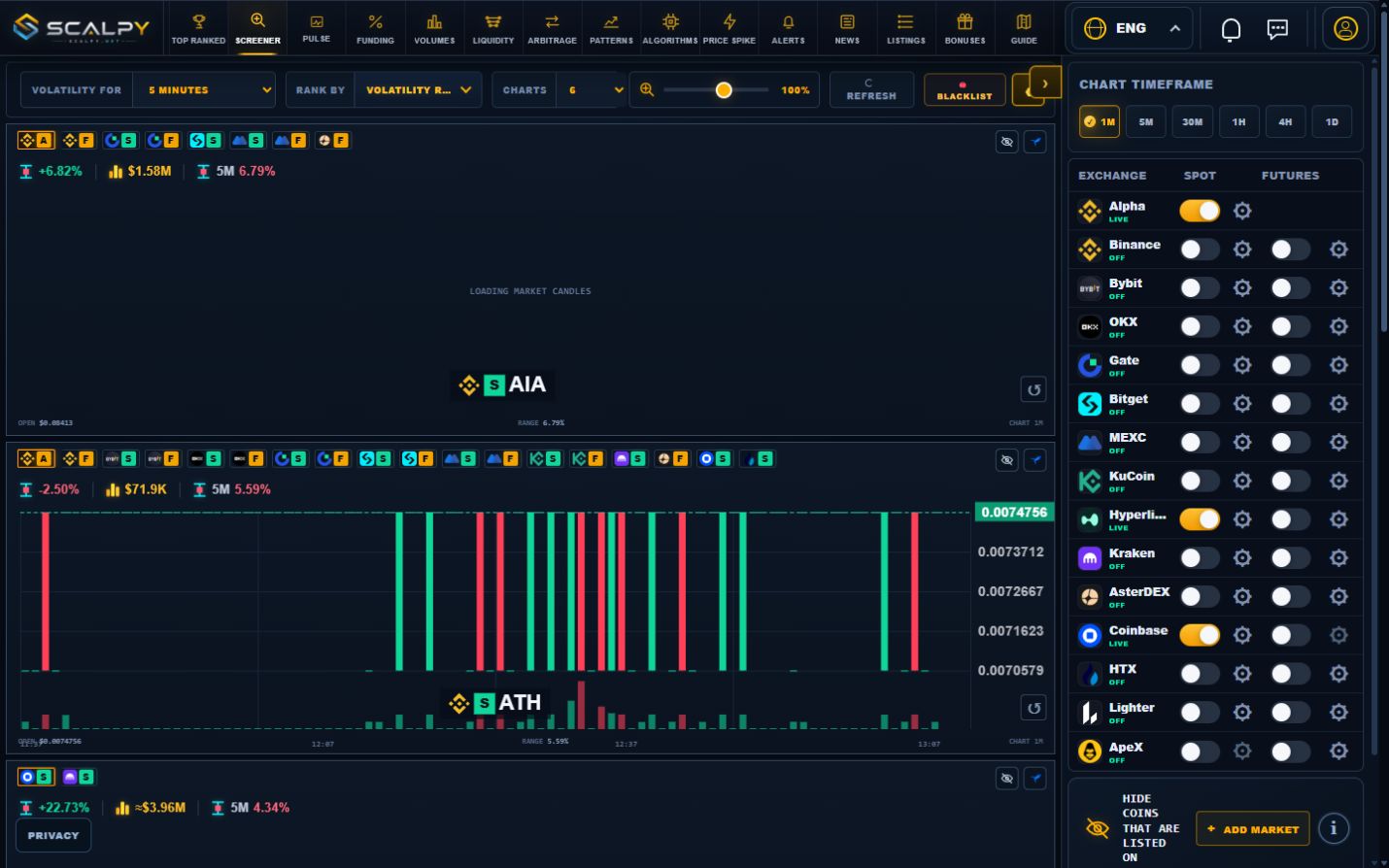
A candle-chart grid ranked by movement, range or turnover.
Enlarge screenshot ⤢Real site · 6 October 2026 · values and settings shown as examples.
01Ranking and candle timeframe
The top panel selects a ranking window from 1 minute to 24 hours and a ranking mode: range, price change or volume.
Candle timeframe is independent: 1M, 5M, 30M, 1H, 4H or 1D in filters. You can rank a five-minute move while inspecting hourly candles.
02Grid size and card measurements
Choose 6, 9, 12, 16, 25 or 50 charts and adjust interface scale. A card identifies asset, source, 24-hour change and turnover, and range for the selected window. S/F badges show listing markets; the chart uses its named source.
03Narrowing results
Enable sources and use a market’s ⚙ for individual minimum change and turnover thresholds. Listing exclusions and Blacklist help narrow the grid.
For an empty grid, lower thresholds and check enabled markets. Chart count is a maximum, not a promise to fill every slot.
04Working with a chart
Scroll to zoom, drag to pan, right-click to enlarge and reset to restore the view. The eye hides the coin; Colibri opens it in the terminal.
Candles and 24-hour statistics describe different windows. Assess gaps or stale charts for the individual instrument, especially on sources with partial coverage.
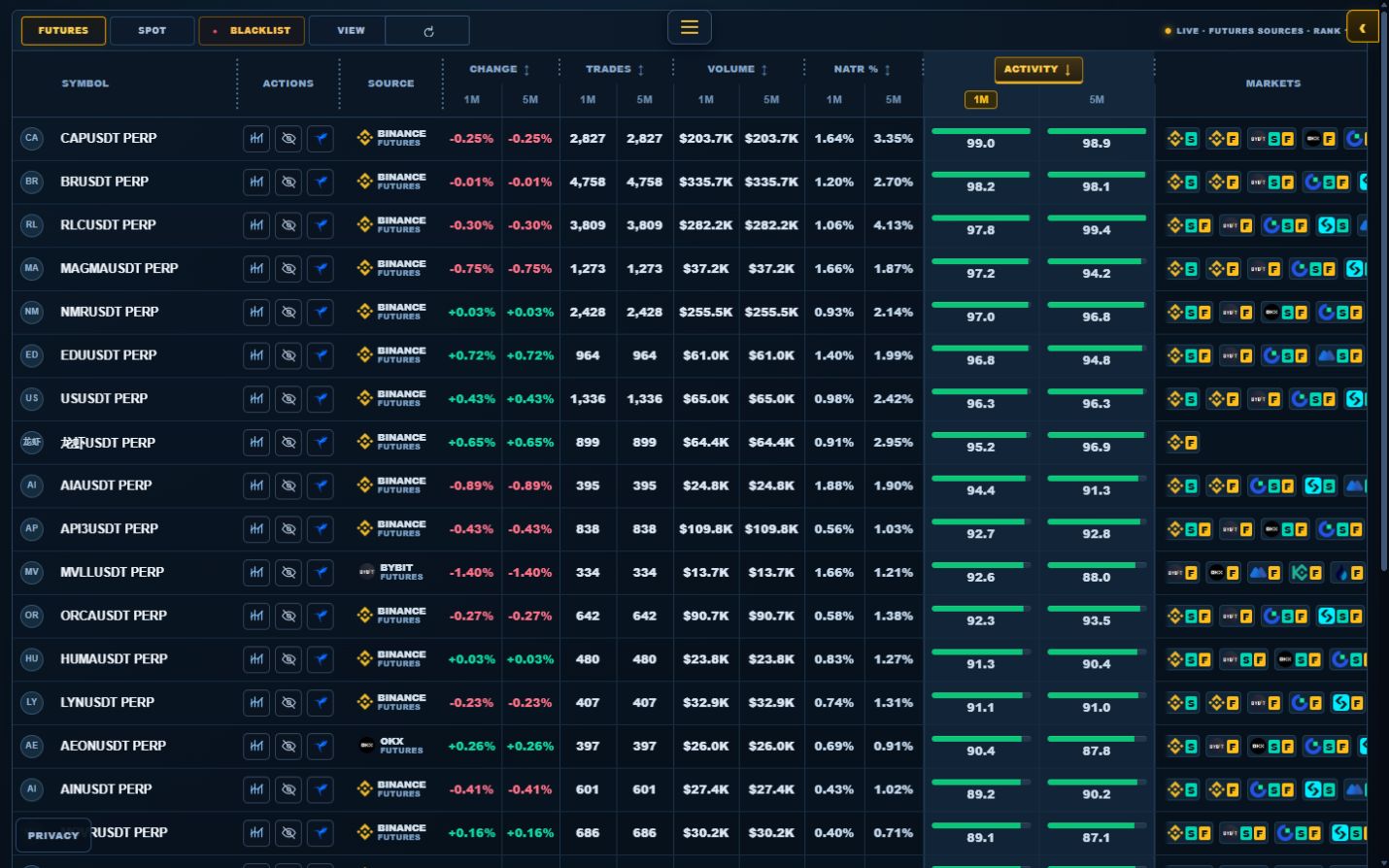
A table of price movement, executed turnover and trading activity.
Enlarge screenshot ⤢Real site · 6 October 2026 · values and settings shown as examples.
01Measurements
Price change describes direction and magnitude. Trades counts executions within a window; volume is executed turnover. NATR measures normalized volatility. Activity represents relative intensity, not the probability of further gains.
02Windows and sorting
Compare columns over matching windows. The 1M/5M activity selector changes its interval. Click column headers to sort; Spot/Futures changes market type.
View settings choose useful columns. Listing exclusions, Blacklist and exchange filters narrow the table.
03Source and opening an asset
A row identifies its calculation source and listing markets. A different exchange badge does not mean it supplied the measurement. Open the row chart to inspect candles or use Colibri. The eye adds the asset to Blacklist.
04A practical reading
Many trades with little price movement indicate intensive turnover, but do not alone establish accumulation. Compare activity, volume and NATR, then inspect candles and the book on the matching venue.
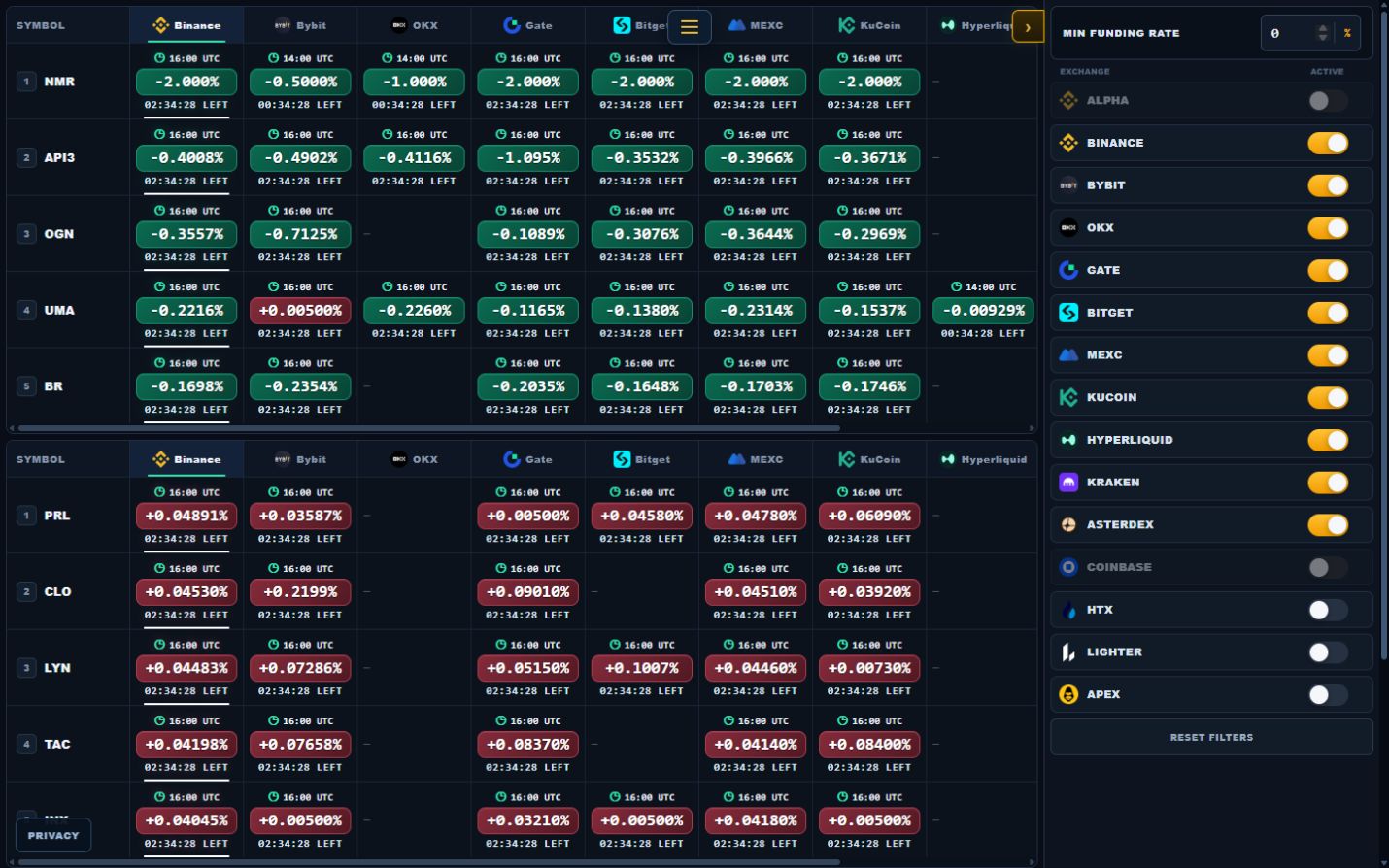
Perpetual funding rates and the next settlement time.
Enlarge screenshot ⤢Real site · 6 October 2026 · values and settings shown as examples.
01Two tables
Negative and positive rates are grouped separately. Rows are assets and columns are venues. An empty cell means no available value for that combination, not a zero rate.
02Rate, time and interval
Rates are percentages with next settlement UTC and a countdown. Funding intervals vary by venue and contract; identical percentages over different intervals do not imply equal cost.
Under standard positive funding longs pay shorts; negative funding reverses this. Check the source for contract-specific rules and the current rate.
03Filters
Enable venues and set a minimum rate magnitude in percent. Click a venue header to order results by that source. Unavailable sources are excluded. Reset restores the block’s defaults.
04Interpreting a comparison
Funding can change before settlement. The displayed rate excludes price movement, fees and hedging costs. Compare intervals, settlement times and venue terms for both contracts.
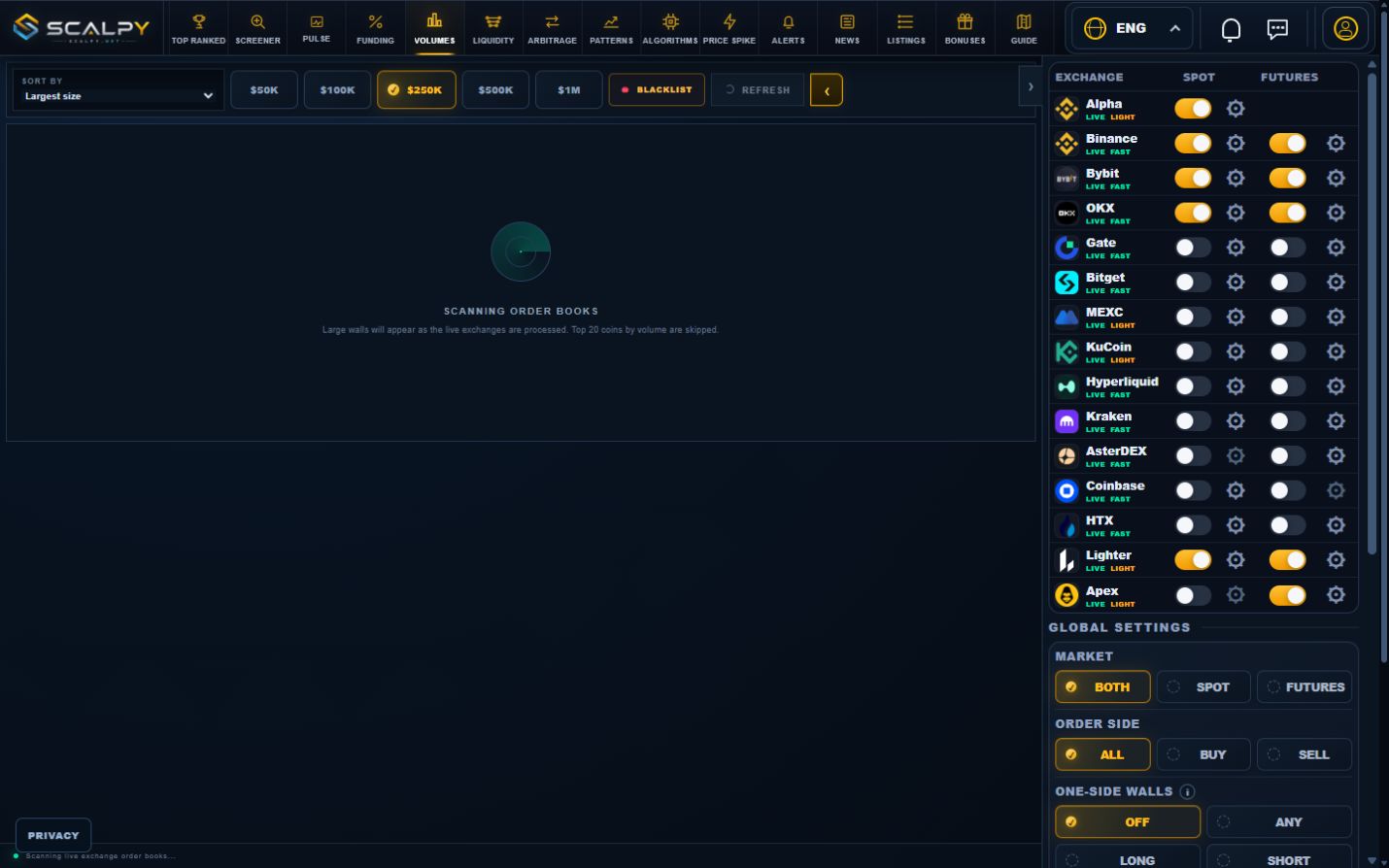
Large resting book orders: size, price, distance and observed age.
Enlarge screenshot ⤢Real site · 6 October 2026 · values and settings shown as examples.
01Reading wall rows
Green rows are Bid and red rows Ask. Size estimates a resting order’s monetary value; price locates its level; distance is its percentage gap from current price. These are book orders, not executed trade volume.
Age starts at observed appearance. Sampling gaps and aggregate-level changes cannot establish the uninterrupted life of one order. The confirmation badge shows how recently the current book verified it.
02Size and ordering
Quick $50K…$1M controls change the size threshold. Sort by largest, nearest, oldest or newest walls. Source switches and ⚙ select markets and individual settings. This tool also applies its turnover-based exclusion of the largest assets.
03Additional filters
Choose both markets, Spot or Futures; both sides, Buy or Sell; quote currency, maximum distance and minimum age. One-sided filters select dominant-side structures; Long/Short are structural labels, not an open position.
The market-maker filter uses order-pattern heuristics rather than identifying an actor. NEW highlights recently observed walls. Blacklist restores hidden assets.
04Checking a wall
Open the card’s chart or Colibri and check price, side and source. A wall can be cancelled, moved or filled after refresh. LIVE LIGHT and partial coverage mean short-lived orders may go unobserved.
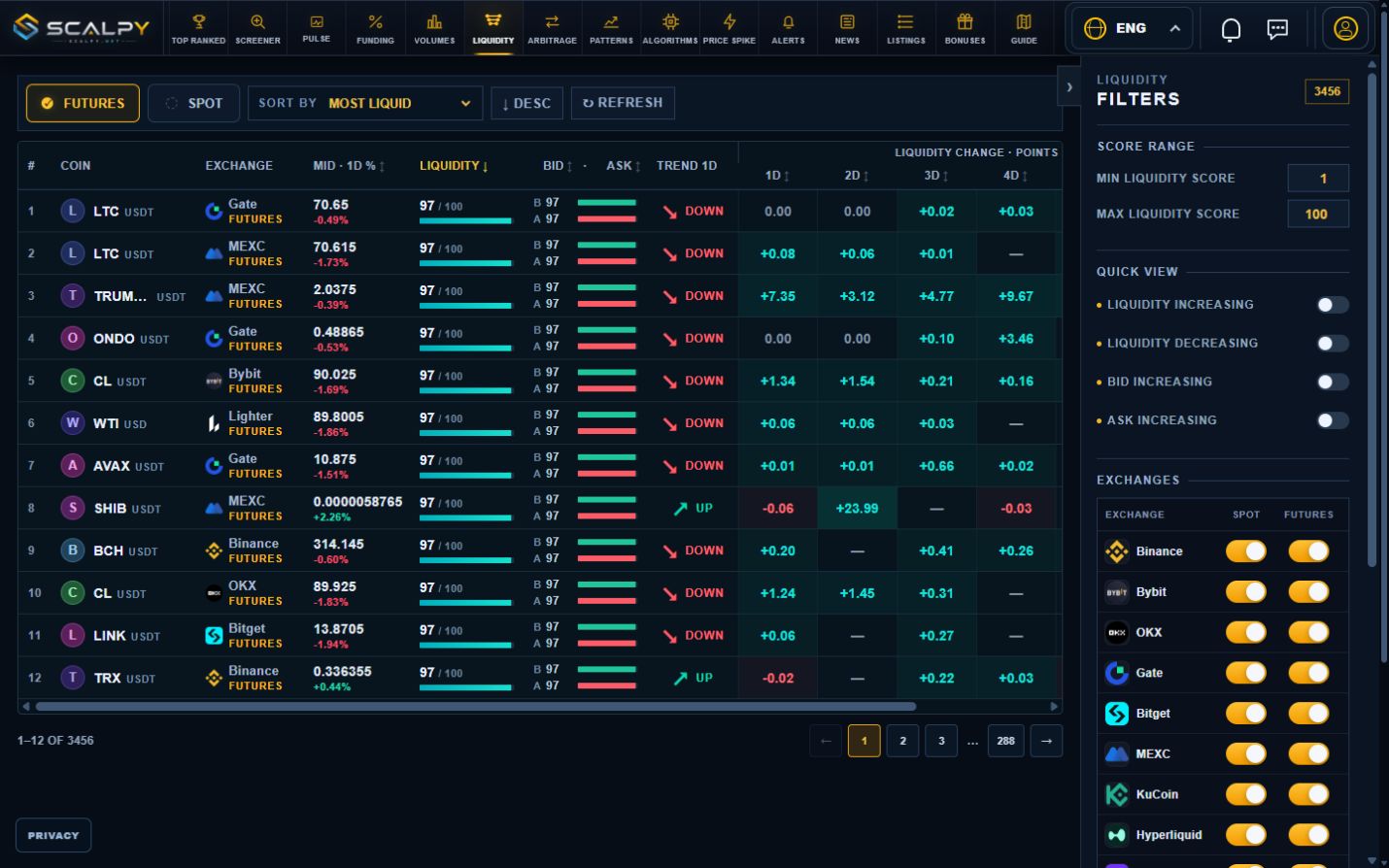
Current market-depth scores and changes across completed UTC days.
Enlarge screenshot ⤢Real site · 6 October 2026 · values and settings shown as examples.
01Columns and scale
The table shows source, daily mid-price change, total liquidity score, Bid and Ask. Compare scores within the market type; Spot and Futures use separate scales.
1D…6D columns are score-point changes, not price percentages. +8 means eight score points above the corresponding prior day.
02Daily history
A daily value uses four valid snapshots near 00:00, 06:00, 12:00 and 18:00 UTC within the accepted windows. Completed days are used; changes compare against the exact day one to six days earlier.
Missing history stays blank, rather than becoming zero or borrowing an older day. A history-building message is expected when completed measurements are unavailable.
03Filtering and sorting
Select Spot/Futures and venues. Restrict scores to a range within 1–100 or use quick rising/falling and Bid/Ask conditions. Column headers and sort controls order by total liquidity, a side or daily change.
04Asset details
Open a row for detailed history and sample times. Compare total score with Bid/Ask; identical totals can reflect different structures. On partial feeds, check the asset’s freshness rather than relying only on venue status.
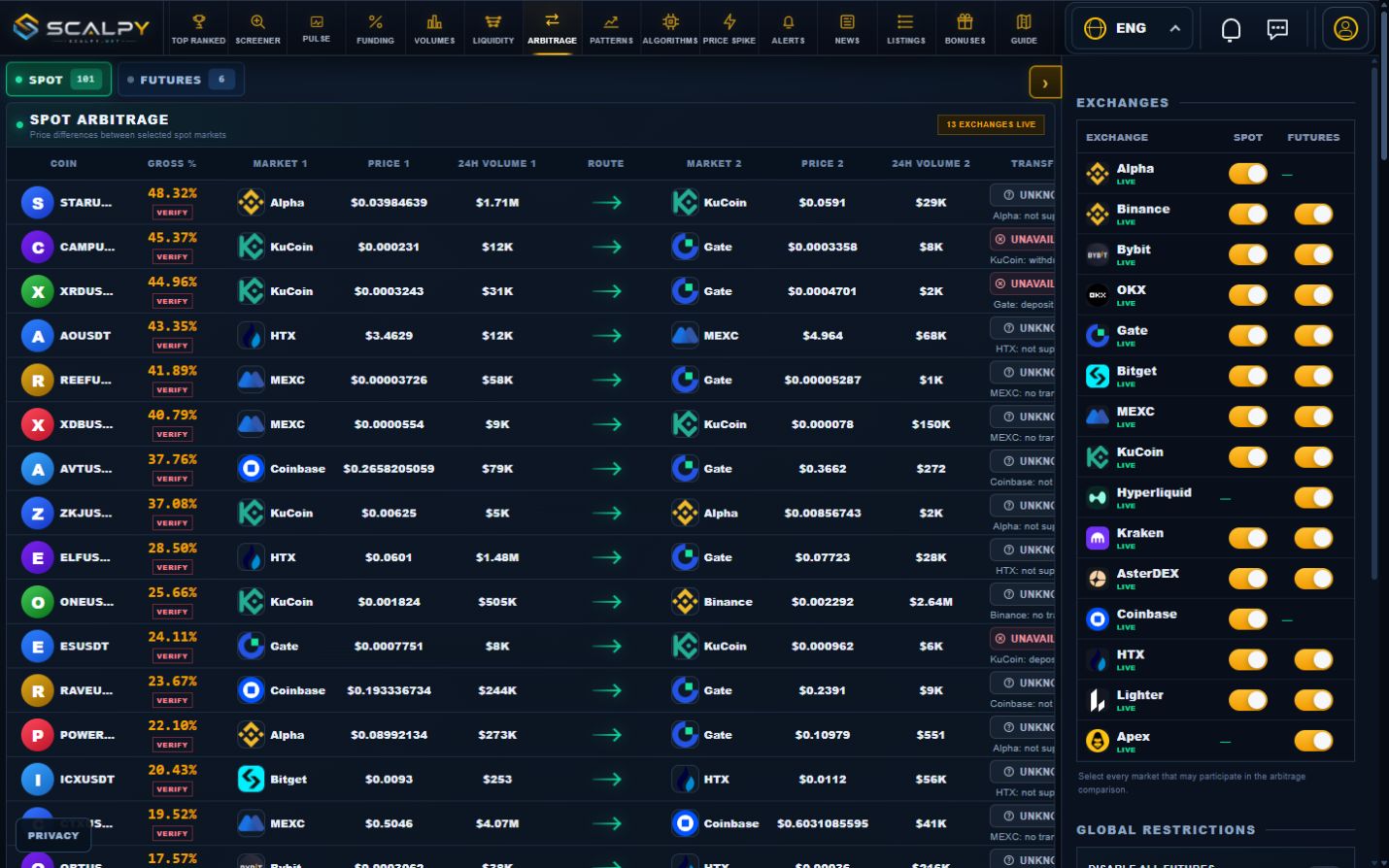
Quote differences between two markets and transfer-route information.
Enlarge screenshot ⤢Real site · 6 October 2026 · values and settings shown as examples.
01Reading a market pair
Choose Spot or Futures. A row includes asset, spread, both markets, prices and 24-hour turnover. Route direction identifies the prospective buy and sell sides. Verify asset identity and quote currencies.
02What spread includes
Spread measures the difference between available quotes. It is not net profit: fees, slippage, executable size, funding, borrowing costs and transfer time are excluded.
A large gap can disappear before execution. The page does not place orders or transfer funds.
03Filters
Enable Spot/Futures sources and set minimum spread plus minimum 24-hour turnover on both sides. Disable-all controls help rebuild the market set. Spot can hide candidates without an available transfer route.
04Transfer availability
Spot routes check source withdrawals, destination deposits and a compatible network. An unknown status is not permission to transfer. Venue and network conditions can change; verify both ends before acting. Lighter/APEX comparisons use recently scanned books and can be partial.
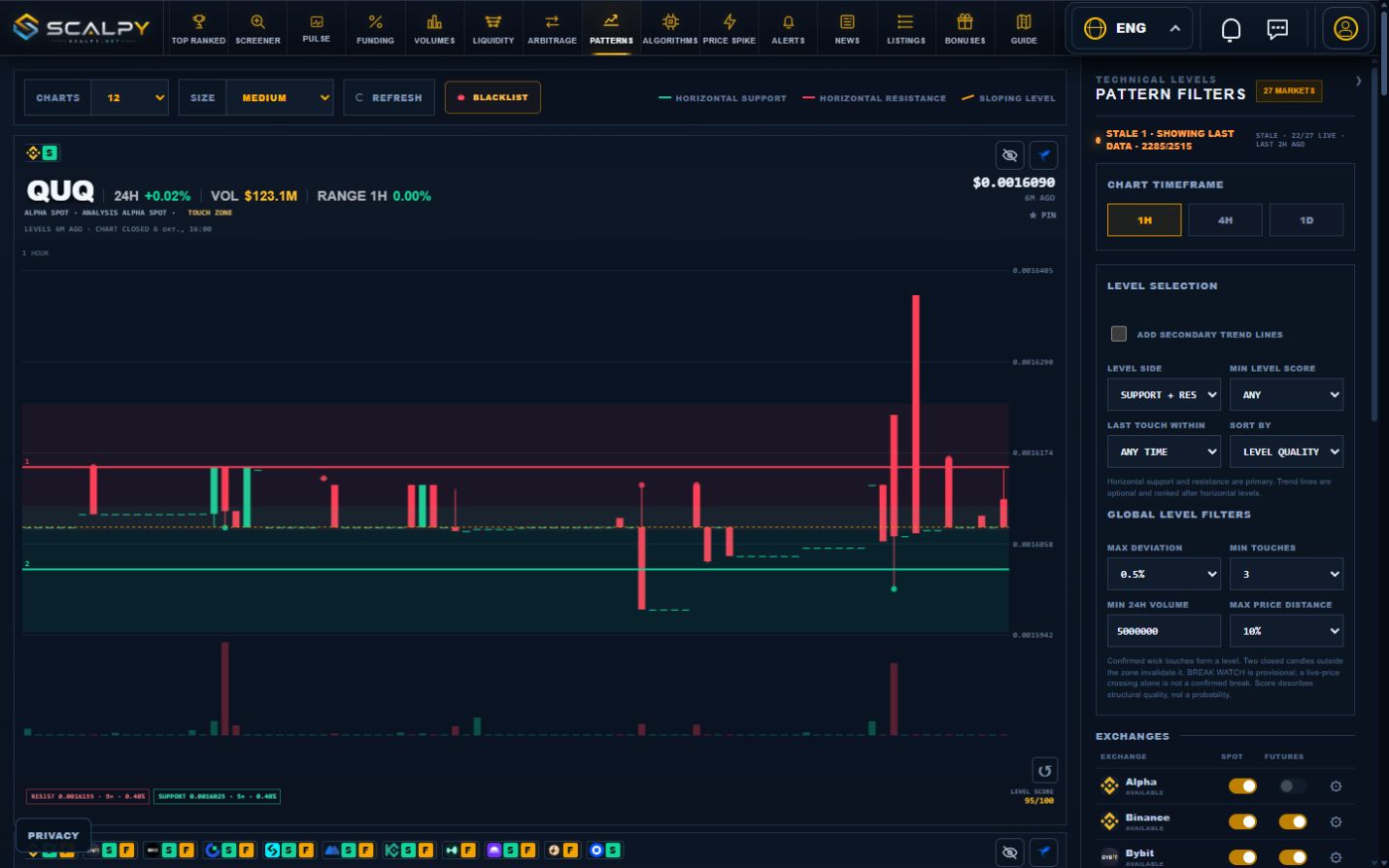
Horizontal support and resistance on 1H, 4H and 1D, with optional secondary trend lines.
Enlarge screenshot ⤢Real site · 6 October 2026 · values and settings shown as examples.
01Primary levels
Green horizontal lines indicate support; red lines resistance. Yellow trend lines are enabled separately and supplement the primary levels. Analysis uses 1H, 4H and 1D; 5M levels are not tracked.
Choose both sides or just support/resistance. Chart count and card size adjust the overview.
02Touches, zone and quality
Deviation-zone width sets the accepted corridor around a level. Minimum touches, quality threshold and last-touch age filter structures. Confirmed touches use closed candles, including wicks.
Quality scores describe structure rather than success probability. Sort by quality, distance or last touch for different questions. Minimum 24-hour turnover and maximum level distance further narrow results.
03Breaks and freshness
Two closed candles beyond the zone confirm invalidation. BREAK WATCH during a current crossing is preliminary. Check level calculation and last-candle times; STALE marks old data.
PIN keeps a card, the eye hides its asset, and reset restores chart view. Blacklist restores hidden assets.
04One asset, one source
Analysis prioritizes Binance Futures, then Binance Spot. Other venues supply assets absent from Binance; each asset uses one assigned source and one card. Other listing badges do not imply duplicate analysis.
Stable/stable pairs and tokenized stocks are excluded. This source policy applies to Patterns; other scanners can show multiple markets separately. Source filters select assigned markets.
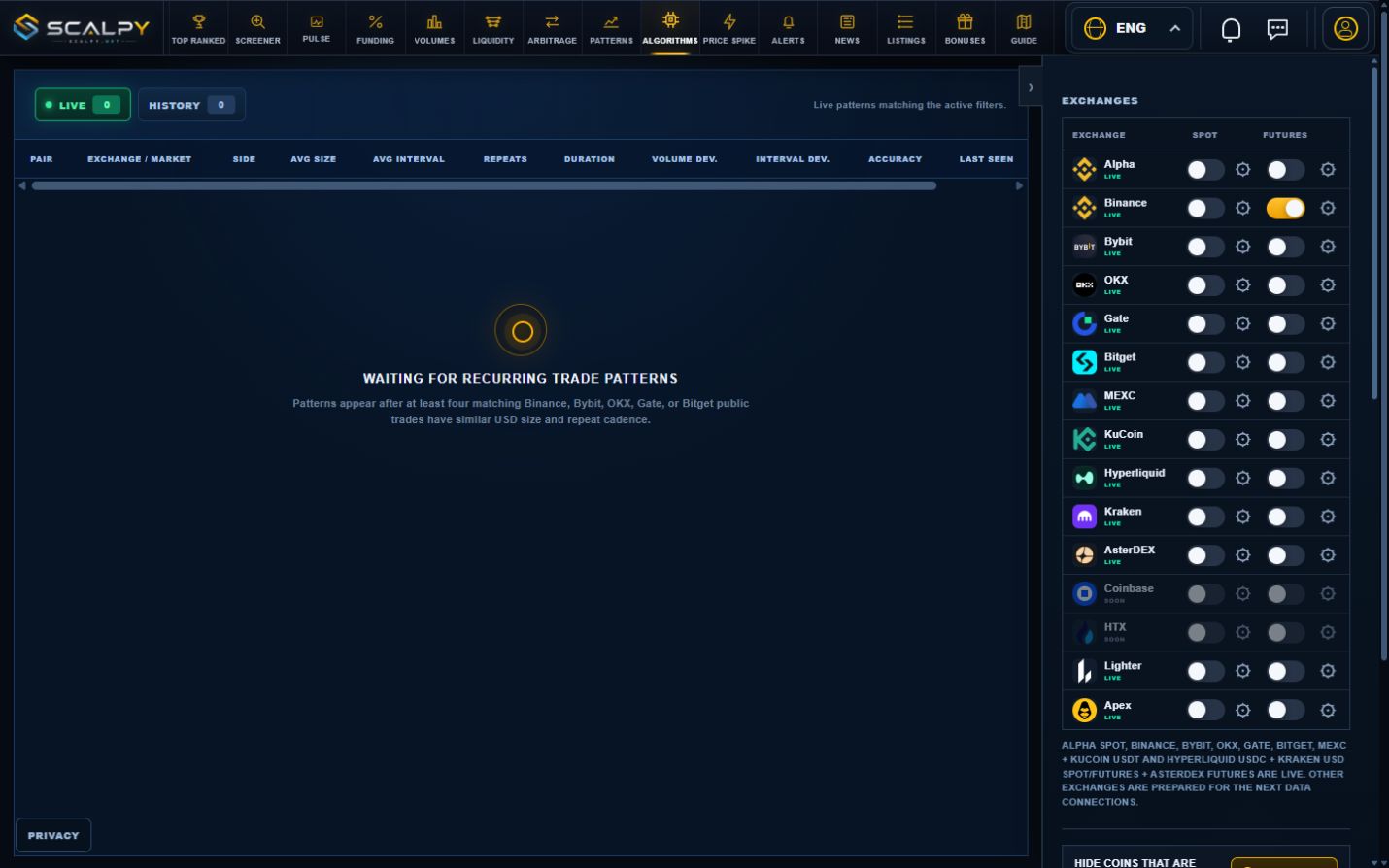
Detecting recurring executions with similar sizes and intervals.
Enlarge screenshot ⤢Real site · 6 October 2026 · values and settings shown as examples.
01Reading a sequence
The table shows pair, venue and market, aggressor side, average monetary size, average interval, repeats, duration and last observation. Volume/time deviations and accuracy or uniformity describe execution similarity.
02Detector settings
Set minimum USD execution size and repeats. Limit volume deviation in percent, interval deviation in seconds and maximum repeat interval. The 5/15/30/60-minute analysis window determines the observed span. Choose Buy, Sell or both.
Tighter tolerances reduce detected sequences. Individual market ⚙ settings can override global filters.
03Live and history
Live shows current detected sequences; History lists retained observations. Status and last-execution time distinguish continuing activity from completed observations.
Choose sources and listing exclusions. Unavailable markets marked “soon” are not scanned.
04What detection establishes
Similar sizes and regular intervals can be consistent with algorithmic execution. Public aggregated trades do not identify a specific bot, owner or intention. History contains detected sequences, not every trade across exchanges.
The latest 20 matching events and a linked one-minute chart.
Enlarge screenshot ⤢Real site · 6 October 2026 · values and settings shown as examples.
01How an event qualifies
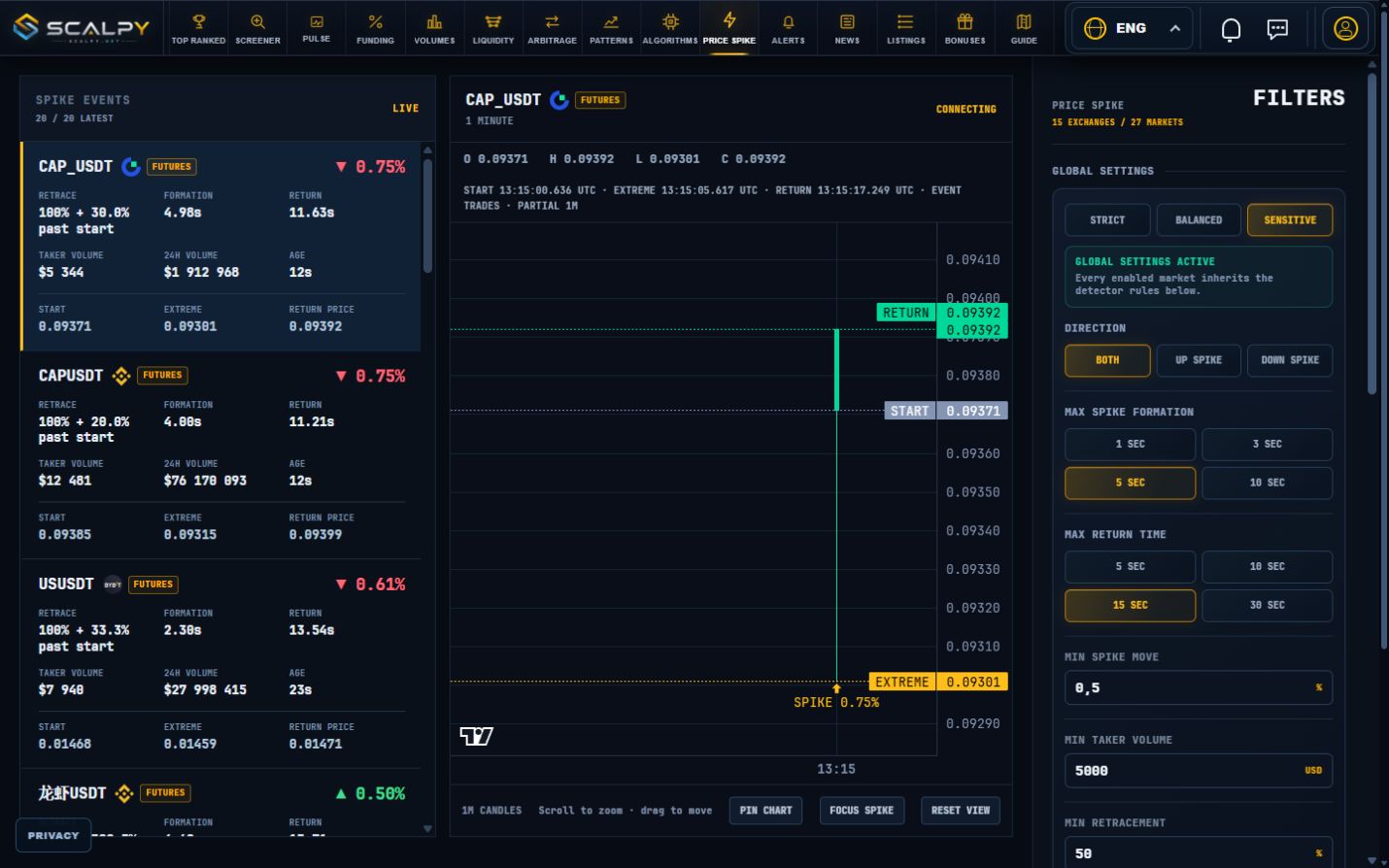
The detector looks for a fast move followed by retracement. Strict, Balanced and Sensitive apply filter presets. Manually adjust direction, maximum formation/return times, minimum move, taker turnover, retracement and 24-hour turnover.
Only the latest 20 matching events appear. An empty list can simply mean no qualifying move. The screenshot uses Sensitive to demonstrate event cards.
02Reading an event card
The arrow gives the original move’s direction; the percentage its amplitude. Formation is start-to-extreme time; return is extreme-to-recorded-retracement time. Taker is event turnover; 24H is separate daily turnover.
Retracement is relative to the original amplitude. “100% + 20% beyond start” means a complete return plus another 20% of that amplitude beyond the start price. Milliseconds use source timestamps; multiple executions can share a timestamp.
03Automatic selection and PIN
The freshest new event becomes active automatically. Pin the chart to inspect one event without interruption. A pinned chart remains available even if its event leaves the latest 20. Unpin to resume automatic following.
04Chart and source timing
The chart uses 1M candles with start, extreme and return markers. To spike centers the event; Reset view restores framing; scroll and drag adjust scale and position.
Before exchange history arrives, a partial candle can be built from event trades. Loading/partial 1M labels explain this state. Market ⚙ controls set individual rules; MEXC, KuCoin, Lighter and APEX have partial coverage.
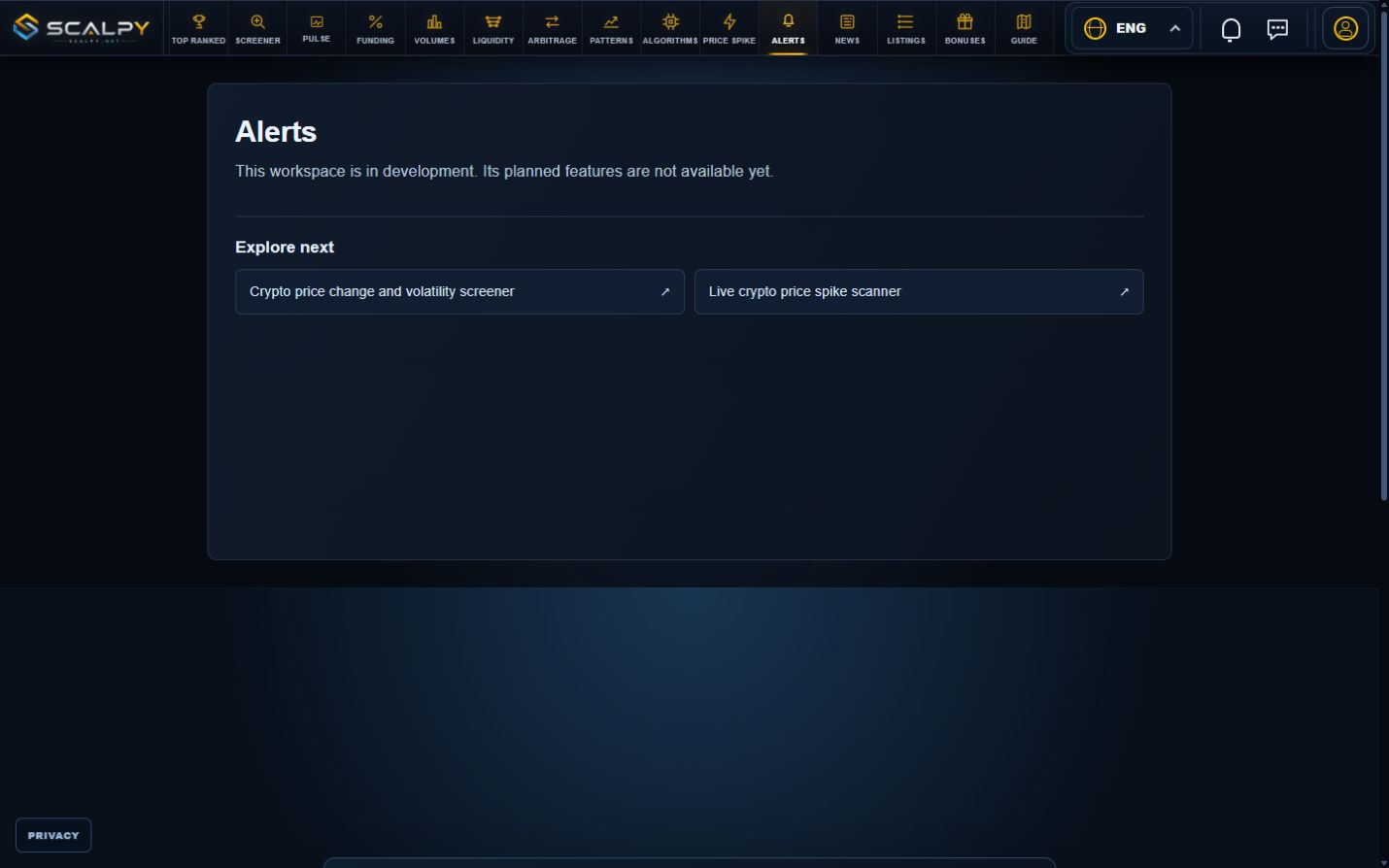
Personal market alerts are currently in development.
Enlarge screenshot ⤢Real site · 6 October 2026 · values and settings shown as examples.
01Current availability
The page displays Module in development. Personal price conditions and market-alert delivery are not available here yet. The back button opens Top Ranked.
02The header bell
The bell handles Scalpy system notifications; it does not replace the personal Alerts scanner. Platform messages and trading-event detection are separate functions.
Publisher feed, event importance, calendar and saved stories.
Enlarge screenshot ⤢Real site · 6 October 2026 · values and settings shown as examples.
01Feed and search
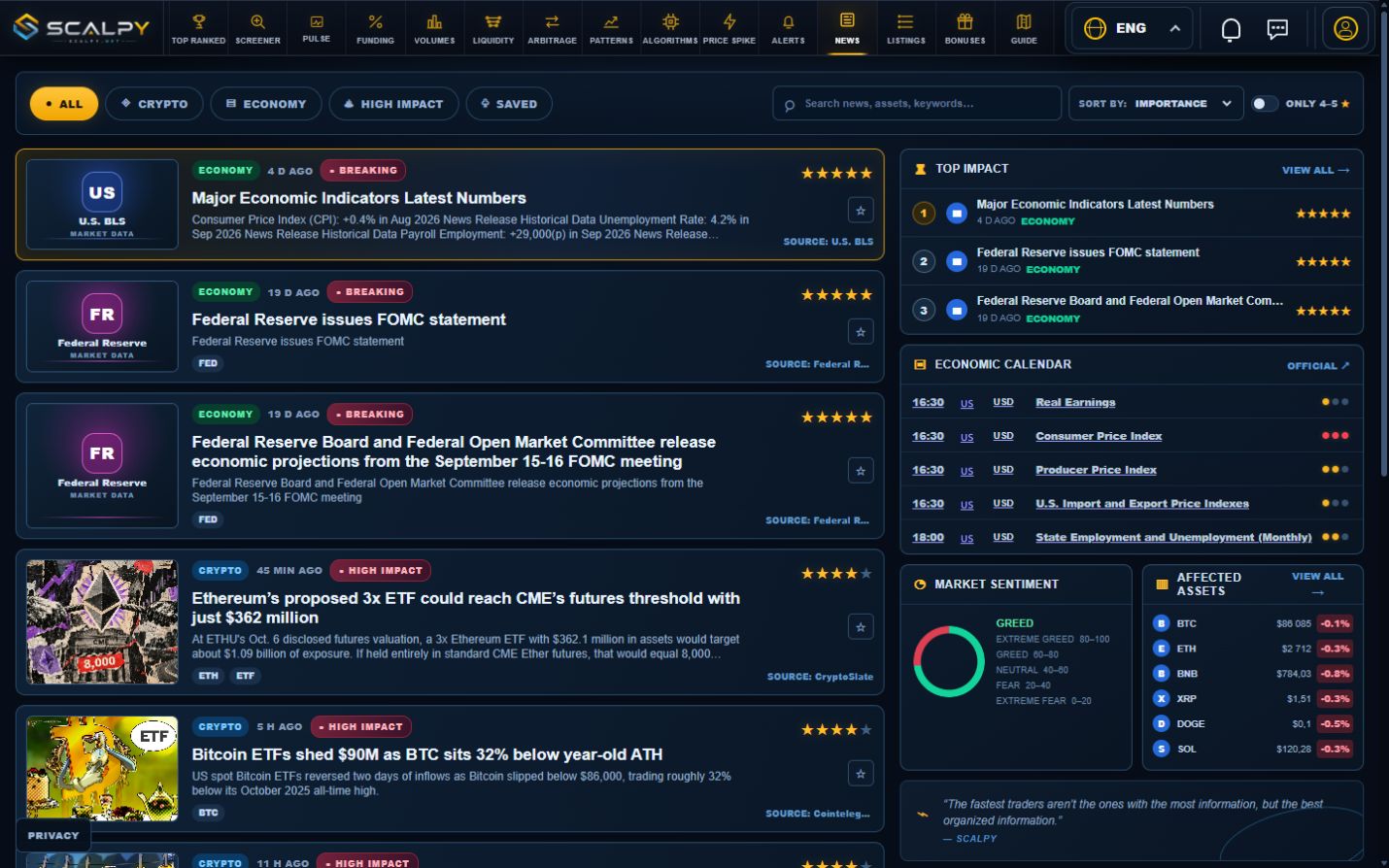
Switch between all, crypto, economy, important and saved stories. Search filters text; sort by latest or importance. The 4–5 ★ checkbox keeps higher-rated items.
02Story and source
A card shows headline, source, time and importance. Open the publisher to read the full story and verify context. Bookmark saves it in the browser; pagination opens further results.
03Dashboard panels
Top Impact collects significant stories; View all expands the selection. The economic calendar lists scheduled events with available primary sources. Market sentiment and affected assets help explore the thematic context.
04Scores and refresh
Stars and sentiment classify stories rather than giving a verified probability of price movement. An asset association does not establish causation. Publication, feed acquisition and event times can differ.
Upcoming and recent market launches from verified source data.
Enlarge screenshot ⤢Real site · 6 October 2026 · values and settings shown as examples.
01Tabs and tables
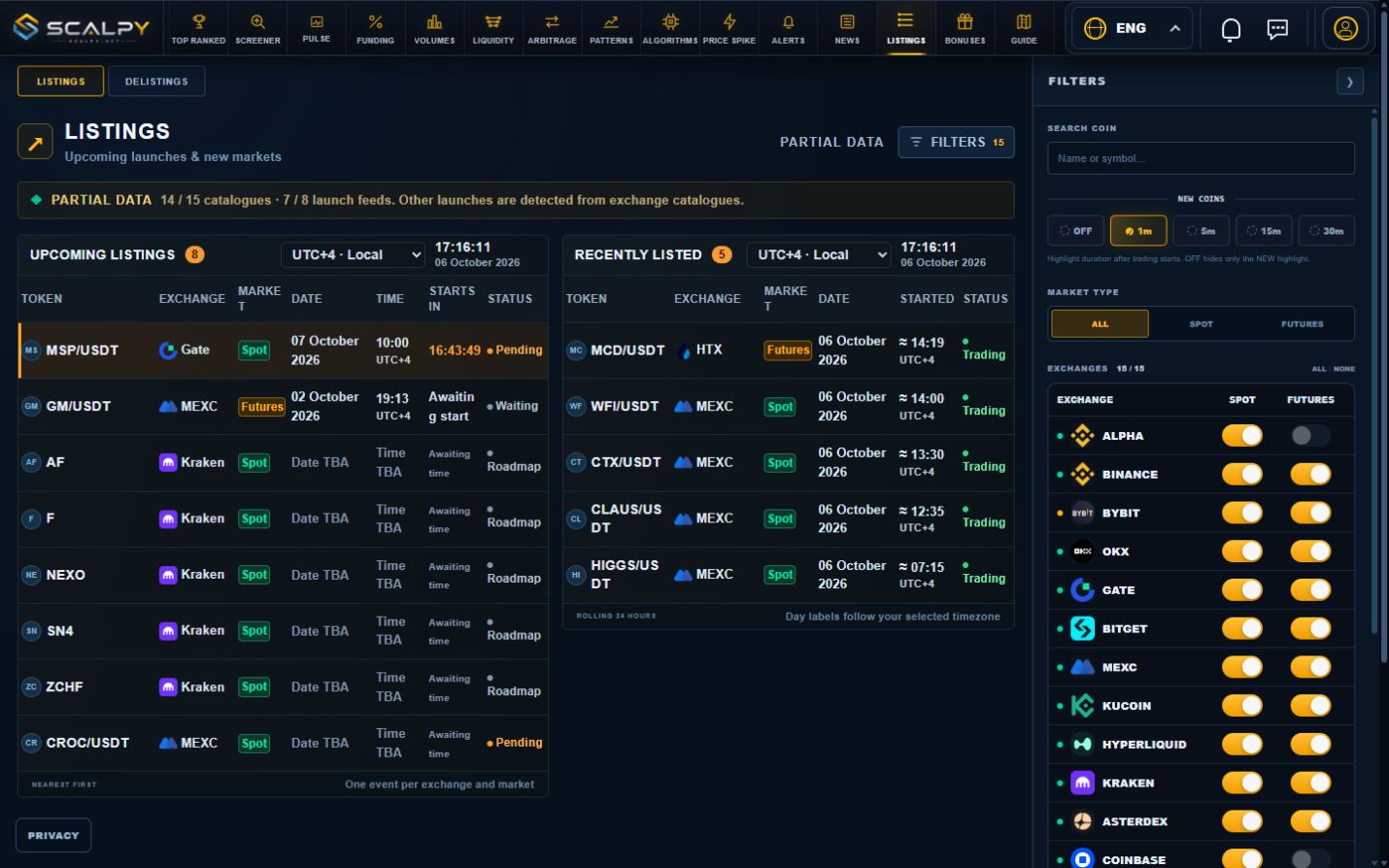
Listings and Delistings have separate tabs and URLs. Each has upcoming and recent events. Rows show asset, venue, Spot/Futures, date, time, status and countdown.
02Timezone and filters
Choose local time or a UTC offset in the table. Dates are rendered in that timezone. Search selects assets; filters select market type, venues and announcement age. All/None controls manage sources. NEW controls recent-event highlighting.
03Announcement versus confirmation
A scheduled launch does not prove trading is live; confirmed recent launches require execution evidence. Removals use notices plus verified cessation or an explicit terminal status.
≈ means observed timing rather than an exact announced time. TBA means unknown timing. Passing a scheduled time does not automatically confirm completion.
04Coverage and empty results
Status shows catalogue and specialist-feed availability. Data can be partial while the page works normally. With no events, check search, venues and period; the site does not promise every announcement from every venue.
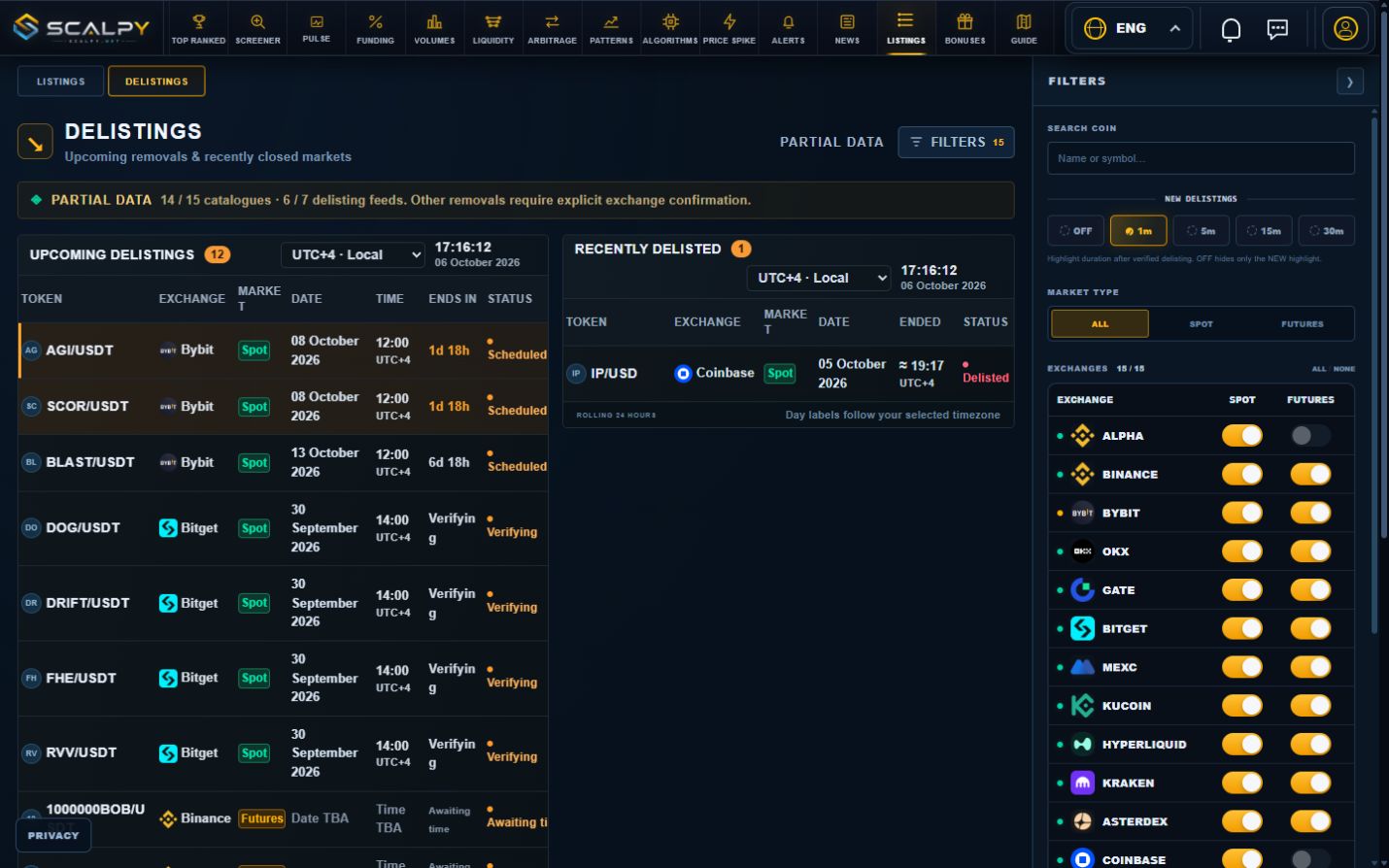
Upcoming and recent market removals from verified source data.
Enlarge screenshot ⤢Real site · 6 October 2026 · values and settings shown as examples.
01Tabs and tables
Listings and Delistings have separate tabs and URLs. Each has upcoming and recent events. Rows show asset, venue, Spot/Futures, date, time, status and countdown.
02Timezone and filters
Choose local time or a UTC offset in the table. Dates are rendered in that timezone. Search selects assets; filters select market type, venues and announcement age. All/None controls manage sources. NEW controls recent-event highlighting.
03Announcement versus confirmation
A scheduled launch does not prove trading is live; confirmed recent launches require execution evidence. Removals use notices plus verified cessation or an explicit terminal status.
≈ means observed timing rather than an exact announced time. TBA means unknown timing. Passing a scheduled time does not automatically confirm completion.
04Coverage and empty results
Status shows catalogue and specialist-feed availability. Data can be partial while the page works normally. With no events, check search, venues and period; the site does not promise every announcement from every venue.
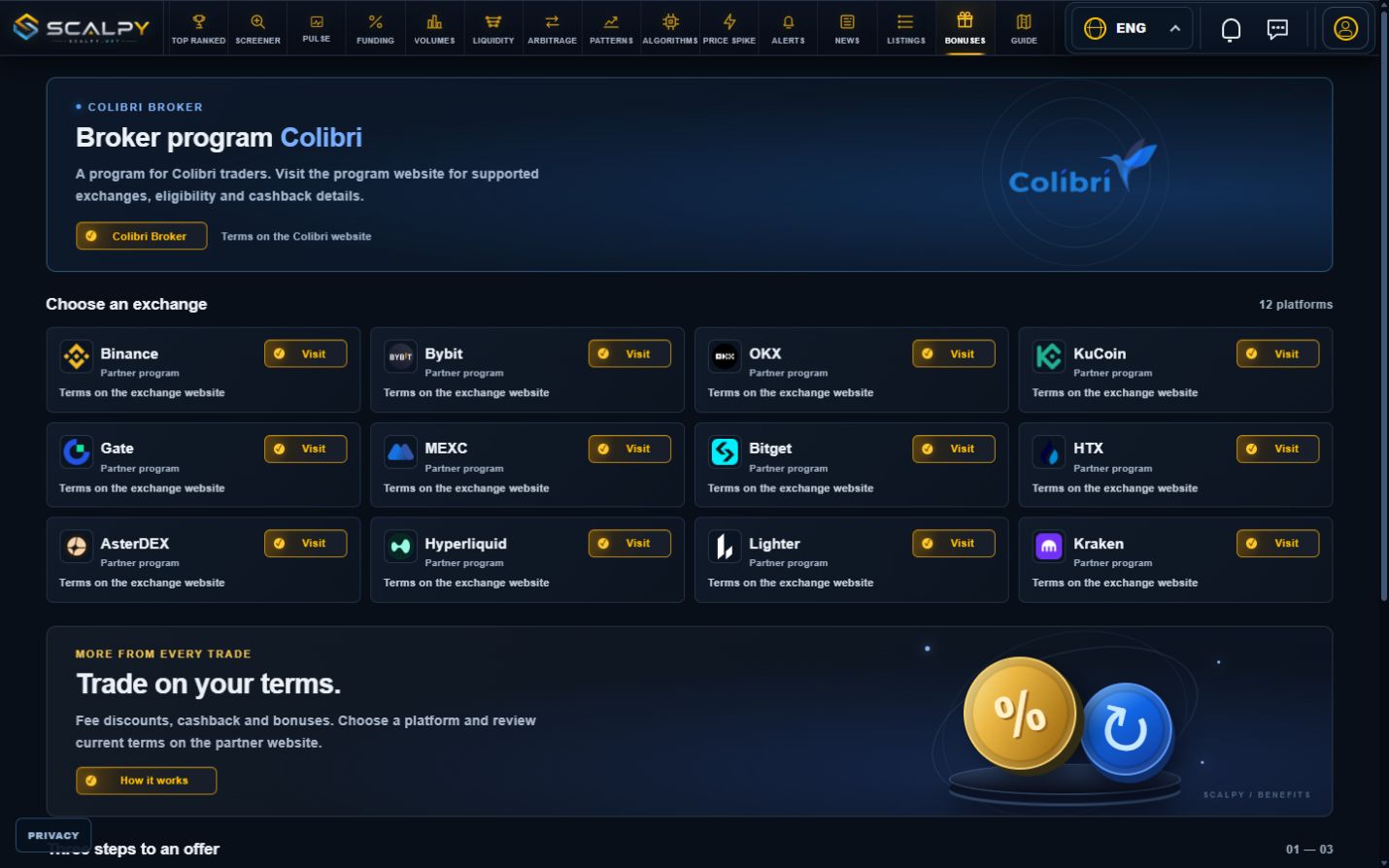
Exchange partner links and a separate Colibri Broker program.
Enlarge screenshot ⤢Real site · 6 October 2026 · values and settings shown as examples.
01Colibri Broker
The top panel links to Colibri Broker registration through the partner URL. This is an external program, separate from buttons that open charts in the local Colibri terminal. Eligibility and payout terms are defined by the partner.
02Exchanges
Visit opens the corresponding platform in a new tab. Cards cover Binance, Bybit, OKX, KuCoin, Gate, MEXC, Bitget, HTX, AsterDEX, Hyperliquid, Lighter and Kraken. Check program eligibility and current terms on the destination site.
03How it works
How it works explains the sequence: open a partner, review terms and follow that program’s rules. FAQ covers accrual, payouts and support. Visiting a partner link does not automatically credit a Scalpy account.
04What Scalpy measures
Scalpy records page views and button actions for partner-traffic statistics. These do not confirm an exchange registration, trade or payout; those outcomes are determined by the partner.
Connecting the browser to the local terminal through Local API.
Enlarge screenshot ⤢Real site · 6 October 2026 · values and settings shown as examples.
01Setup
Run Colibri on the same computer and enable Local API. Scalpy connects to 127.0.0.1 and discovers the available API port. If the browser requests local-network access for this integration, configure it for Scalpy according to your preference.
02CURRENT and ALL
CURRENT opens the pair on its selected source. ALL sends the asset to open across terminal connections. An asset appearing in Scalpy does not guarantee that market is available in your Colibri configuration.
03Opening preferences
CURRENT preferences include a bottom chart or no chart and the active or main window. ALL offers a new tab or window; chart layout is controlled in Colibri itself. Use the workspace’s Colibri settings block where provided.
04Troubleshooting
Check that Colibri is running, Local API is enabled, browser local access is available and the API version is supported. NOT REACHABLE means the local API is unavailable, not that Scalpy market data is missing.
Broker on Bonuses is a separate external registration service; it does not replace the terminal’s Local API.
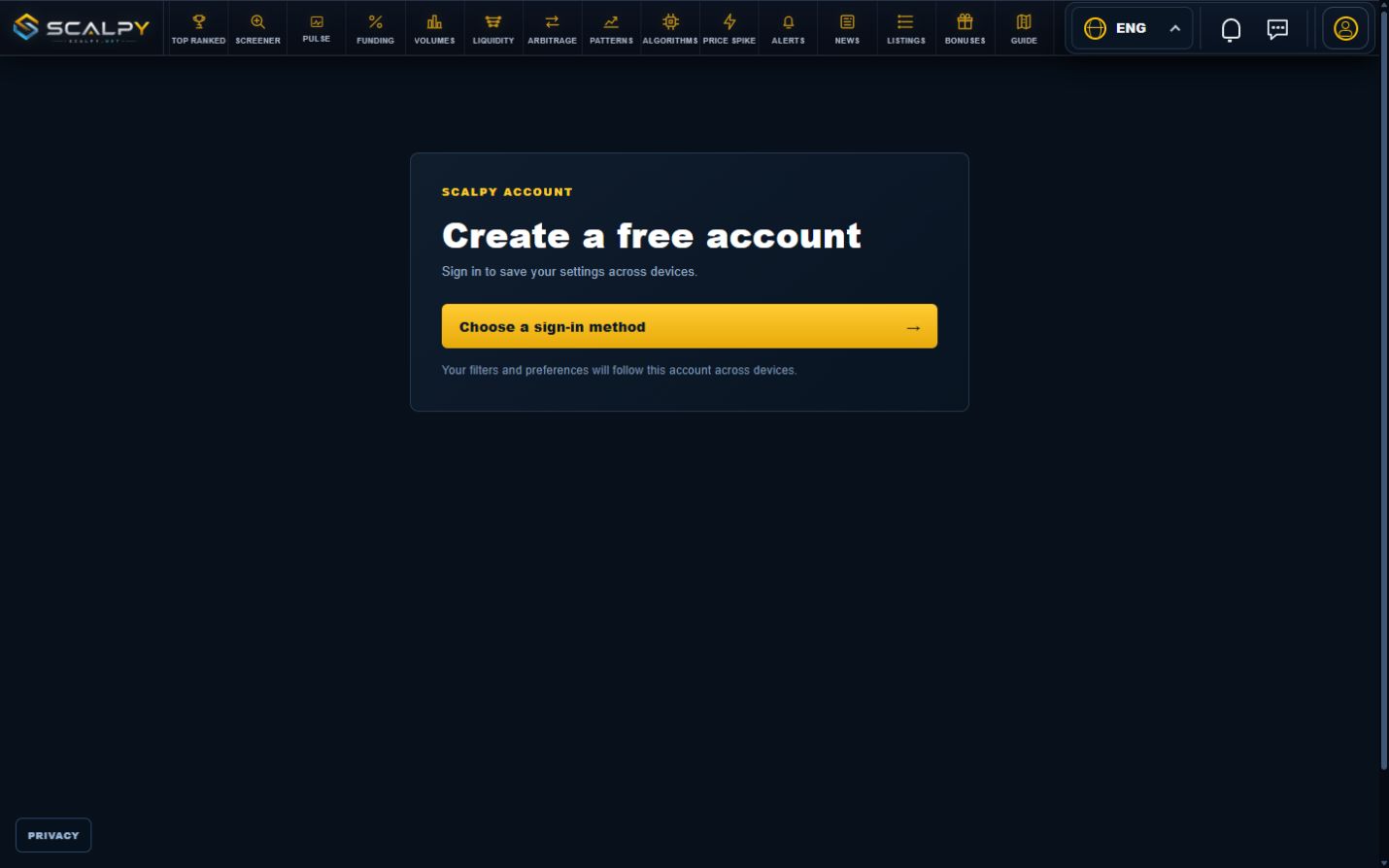
Sign-in, saved settings, UID and support conversations.
Enlarge screenshot ⤢Real site · 6 October 2026 · values and settings shown as examples.
01Signing in
Open the account icon or Profile and choose sign-in. Telegram is available; Google and email are marked coming soon. Telegram sign-in does not require a Scalpy password. Complete confirmation in your own Telegram.
02Preferences across devices
Without sign-in, preferences belong to the current browser. Signing in saves supported settings to the account for other devices. Do not assume every local item, such as saved stories, is synchronized.
03Profile and UID
After sign-in, Profile shows account details, UID and available settings. Copy UID to identify the account in support requests. The screenshot shows the public signed-out screen, not a user’s personal details.
04Support and system messages
The message icon opens support; conversations require sign-in and are saved to the account. Include workspace, asset, source and issue time. The form accepts a PNG/JPG up to 10 MB and a message up to 2,000 characters.
The bell opens system notifications. These are platform messages; personal market Alerts are still in development.
Enlarge screenshot ⤢Real site · 6 October 2026 · values and settings shown as examples.
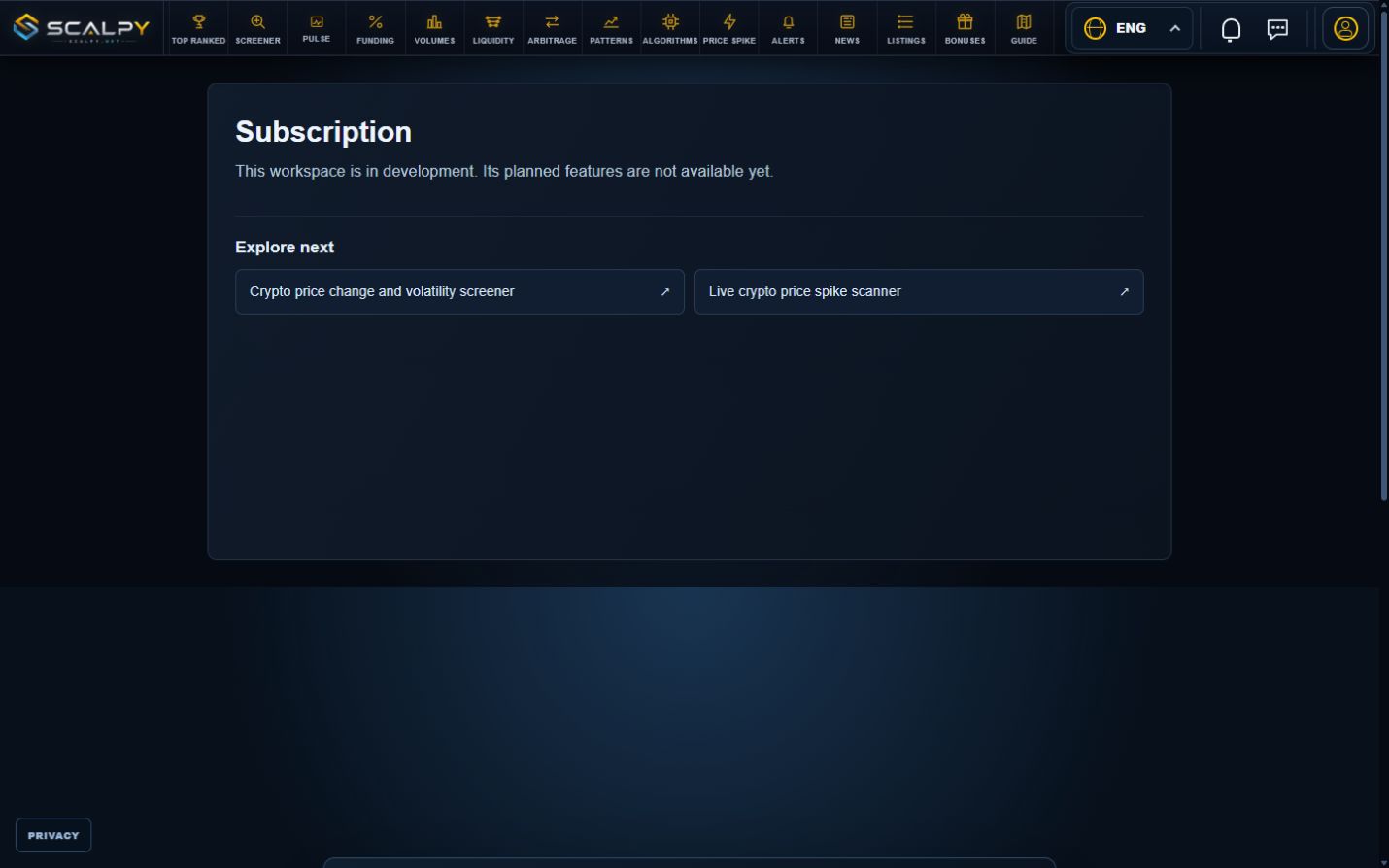
01What is available now
PRO Subscription displays a module in development. Subscription purchase and billing settings are not connected here yet. This guide documents the current state and does not imply available plans or payment methods.
02Where to go next
Use the main navigation for working tools, Profile for account details and signed-in support for questions.
Freshness, warm-up, missing values and actual coverage limits.
Enlarge screenshot ⤢Real site · 6 October 2026 · values and settings shown as examples.
01Data statuses
LIVE indicates a current feed; CACHE uses retained data; CONNECTING/loading waits for a source; STALE marks an old value. Status context differs by tool, so also inspect the asset, candle or book timestamp.
A working connection and fresh aggregate status do not ensure every pair is fresh. A blank cell means no available measurement, not zero.
02Warm-up
Candles, levels, recurring sequences and daily liquidity require history. Results can appear gradually during warm-up. Reloading cannot speed up acquisition of missing historical measurements.
For empty results, check sources, Blacklist, exclusions and thresholds. If expected data remains absent with moderate filters, send support the exact workspace, source, pair and time.
03Partial coverage
MEXC and KuCoin use a limited set of liquid assets for live scanners. Screener, Pulse, Volumes and Price Spike can miss pairs or retain stale values. Top Ranked, Funding and Listings catalogues use their own sources and do not share that selection policy.
Lighter and APEX use light acquisition: short events can be missed, book scans are bounded and Arbitrage uses recently checked books. Patterns history acquisition on these venues is also limited. APEX Spot is unavailable.
04Comparing measurements
Align market type, currency, window and source before comparing. Daily turnover, event taker turnover, resting-order size and liquidity scores measure different things. News sentiment, level quality and sequence uniformity are not a shared probability scale.
Where to find project information, contact details and data-use policies.
Enlarge screenshot ⤢Real site · 6 October 2026 · values and settings shown as examples.
01About
About explains Scalpy’s purpose and tool use. The site brings together public market data, scanners and reference information; third-party venue terms remain with those platforms.
02Methodology and contact
Data & methodology in the footer describes sources, freshness, units and limitations. Contact lists available contact routes. For an account-specific issue, use signed-in support in the header.
03Privacy
Privacy is linked in the footer and sign-in window. The Privacy button changes the analytics choice. Browser preferences, account data and analytics counters are different types of storage; consult the policy for details.

 Enlarge screenshot